How to Make a Photo Collage That Fits Instagram
Instagram crops anything that doesn't match its supported shapes, and a collage where the top row is half cut off looks broken. The fix is simple: build the collage at the right aspect ratio from the start. Here are the shapes that work in 2026, and the exact settings to produce them.
Open the Image CombinerThe sizes that matter
| Where it goes | Ratio | Safe resolution |
|---|---|---|
| Feed post (square) | 1:1 | 1080 × 1080 |
| Feed post (landscape) | 16:9 works; 1.91:1 is Instagram's max | 1080 × 608 |
| Story / Reel | 9:16 | 1080 × 1920 |
The square 1:1 is the safe default for collages: it never gets cropped in the feed, and it previews correctly on your profile grid. Build square unless you have a reason not to.
Making a square grid collage
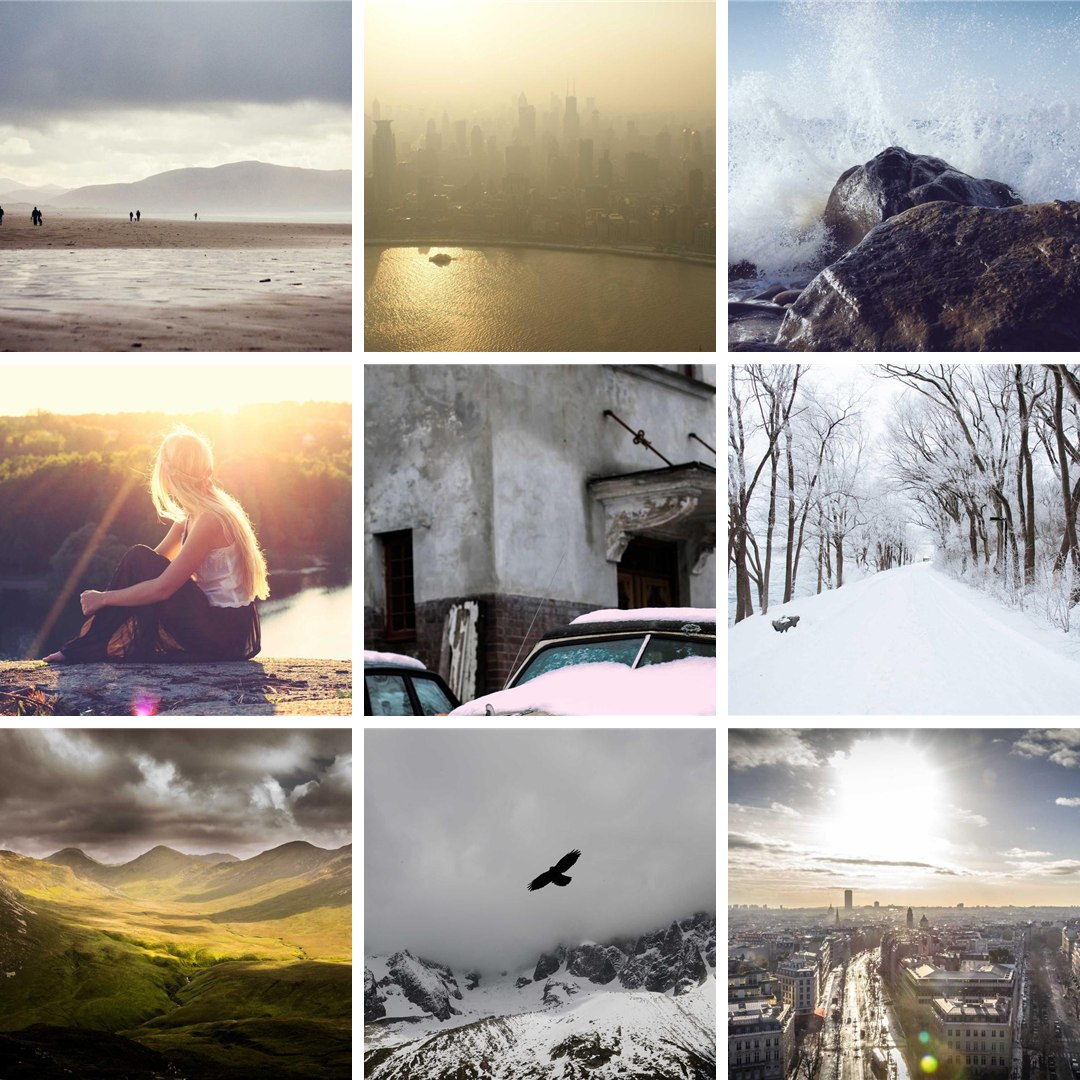
- Click Add Images and select your photos. Four or nine photos make the cleanest squares (2×2 or 3×3).
- Choose the Grid layout and set Columns to 2 for four photos, or 3 for nine.
- Set Size to Crop so every cell is identical. Mixed portrait and landscape shots become uniform tiles instead of leaving gaps.
- Open More options and set Ratio to 1:1. The canvas becomes a perfect square with your grid centered.
- Add Spacing of 1 or 2 with a white background for the classic clean look, or 0 for edge-to-edge tiles.
Making a Story or Reel collage (9:16)
- Add your photos and pick the Vertical layout. Stacked photos suit the tall format naturally.
- In More options, set Ratio to 9:16.
- Two or three photos stack comfortably; more than four gets cramped on a phone screen.
Export settings for Instagram
- Format: JPG. Instagram re-compresses everything you upload, so PNG's extra size buys nothing for photos.
- Resolution: Instagram downsizes anything wider than 1080px. In More options, set Max px width to 1080 if you want to control the downsizing yourself, or leave it at full resolution and let Instagram handle it; both look fine in practice.
- Rounded corners: skip them for Instagram. The corners render on your collage background, not transparently, and crisp tiles read better in the feed.
Why not just use Instagram's own layout tools? They cap the grid shapes, watermark nothing but also allow nothing custom: no spacing control, no borders, no mixed ratios, and no way to reuse the same collage on other platforms. Building the image yourself means one file that works everywhere: Instagram, Facebook, Pinterest, a blog post, a listing.
Related
Comparing two photos instead of arranging many? See how to make a before/after comparison. Joining screenshots? See stitching screenshots into one long image.
Example photos via picsum.photos.